
VISION PRO / GEMINI LIVE / OPEN SOURCE
SpatialYOLO Tutorial: Gemini Live on Apple Vision Pro
Build a real-time visual assistant on Apple Vision Pro with SpatialYOLO: camera permissions, Gemini 3.1 Flash Live setup, audio/video transport, migration details and latency debugging.
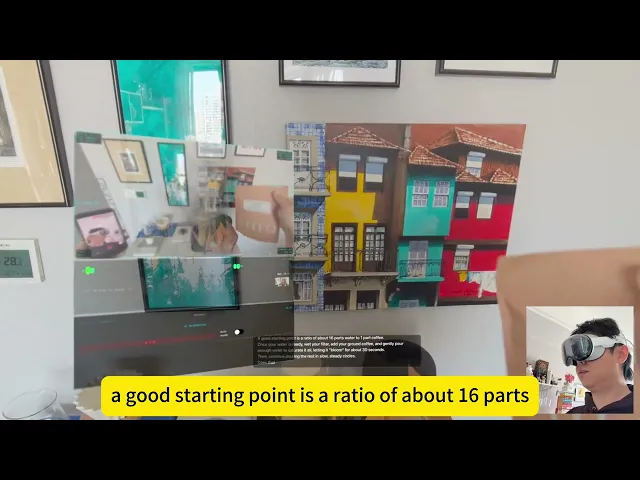
After connecting SpatialYOLO to Gemini 3.1 Flash Live, the most noticeable change was the shorter wait during conversation. When I published the demo on March 30, I noted that English felt more responsive, while I could still perceive pauses in Chinese. That was an experience report: I did not publish controlled latency measurements, and it does not establish that English is always faster than Chinese.
The more useful development detail is how the upgrade happened. I initially expected to migrate from 2.5 to 3.1 by changing the model name, but encountered errors. I then used the official example as a reference and had Codex adjust the API calls. I described that process in my YouTube demo, also shared in the Reddit Vision Pro community.
This tutorial turns that demonstration into a sequence you can inspect: verify the camera, connect audio, then ask the assistant about the scene in front of you.
What does SpatialYOLO do?
SpatialYOLO is my open-source Apple Vision Pro project. Spatial YOLO performs on-device object detection and stereo depth estimation. AI Live connects sampled camera images and voice to a real-time multimodal service, displays response transcripts and plays spoken replies. This article follows the Gemini path; Qwen and OpenClaw are extensions to explore after the basic flow works.
Prerequisites: familiarity with Xcode targets, signing and running an app on a physical device. The work involves downloading code, configuring permissions, checking model resources and completing a conversation. Enterprise entitlement approval is a separate prerequisite.
Version baseline: this article reviews commit b079306 (March 29, 2026), which matches both the public repository and the local project. Sources were checked on September 15, 2026. The README still lists the older Gemini 2.5 model and Xcode 16.2+. The service code has moved on, and the application target specifies visionOS 26.0. Use Xcode with the visionOS 26 SDK and a device meeting that deployment target to reproduce this commit. The old README minimum is insufficient. Browse the pinned source.
1. Separate local detection from cloud conversation
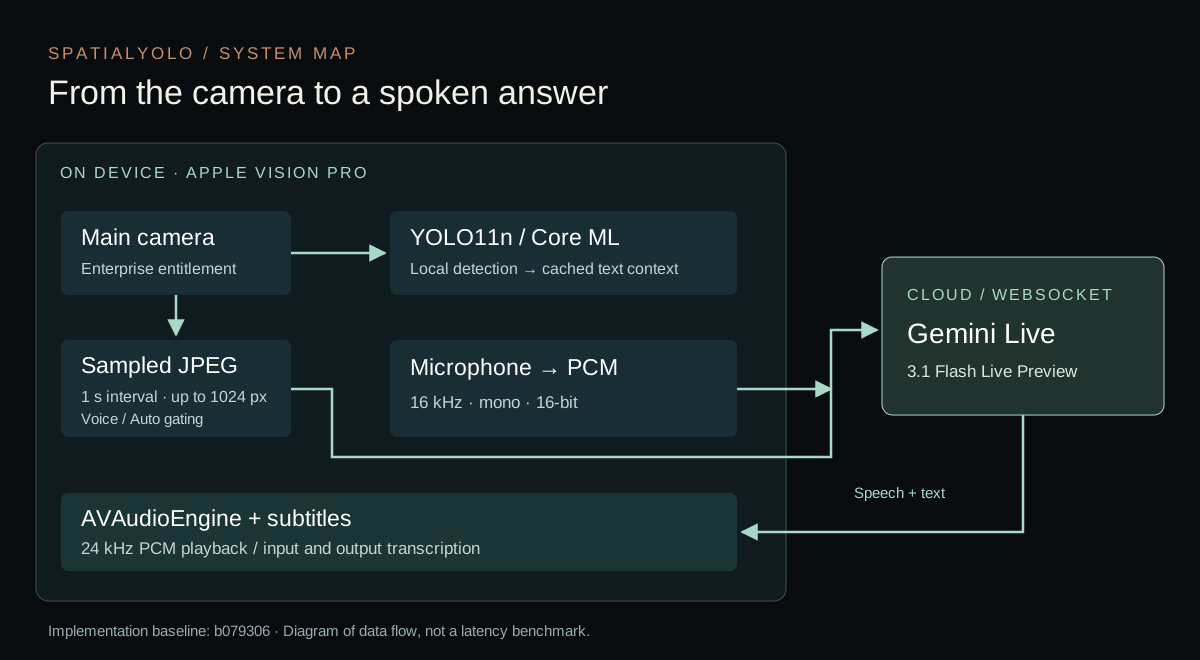
AI Live does not upload every camera frame. AppModel.swift limits sampling with a one-second interval. AppModel+GeminiLive.swift resizes frames in the background, caps the longest edge at 1024 pixels and encodes JPEGs at 0.8 quality before sending them through the service. In non-Auto mode, voice activity also controls sampling: an input-level threshold activates it, and model speech ends that sampling period. A refreshing camera preview and an actively updating cloud input are separate states.
| Data | Implementation in this commit | What to inspect |
|---|---|---|
| Camera image | Left-camera sample → JPEG → realtimeInput.video |
Fresh frames and active sampling |
| Microphone | Mono, 16-bit PCM, 16 kHz → realtimeInput.audio |
Permission, conversion and input level |
| Model speech | 24 kHz PCM → AVAudioEngine |
Playback format and queued audio |
| Subtitles | Input/output transcription → formatter → UI | Incoming transcription events |
| Detection context | Cached in the service, then merged into explicit text requests | Cached context is not sent with every frame |
These values come from the project's Gemini service and frame-processing code. The separation helps diagnose a black preview, missing sound, stale visual answers and absent subtitles independently.
2. Prepare main-camera access
Camera access can determine whether you can reproduce the demo before an API key becomes relevant. Seeing passthrough in Vision Pro does not automatically let your application read the main-camera pixels.
Follow Apple's enterprise API instructions to request Main Camera Access for your application. After approval, add the matching, valid .license file to the target. In Signing & Capabilities → + Capability → Main Camera Access, add the capability. Check expiration and signing compatibility before proceeding.
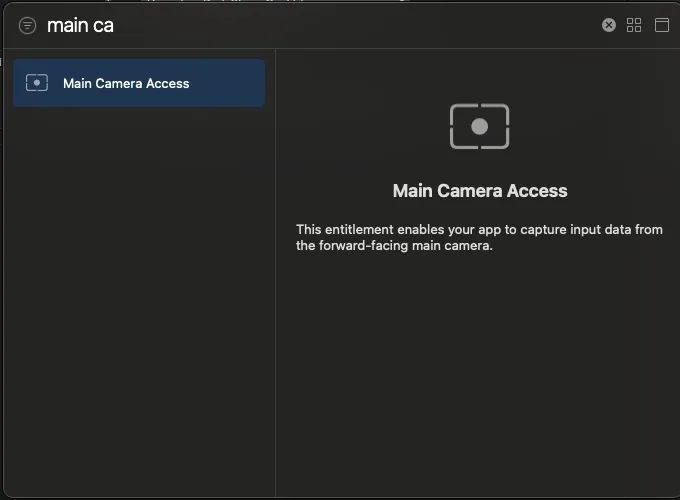
Check the camera usage description, NSMainCameraUsageDescription, in Info.plist, along with the microphone usage description. Allow the relevant access when prompted on the device. Apple's main-camera sample explains the license and usage-description requirements.
The project checks license validity and approval for mainCameraAccess during startup. Get a working device preview before debugging Gemini. A simulator cannot verify the real camera, microphone or spatial experience.
3. Download the pinned version and check model resources
Clone the repository into a new directory and select the reviewed commit:
git clone https://github.com/lazygunner/SpatialYOLO.git
cd SpatialYOLO
git checkout b079306f3f0035c4d6f73afe8a784f821733b53c
open SpatialYOLO.xcodeproj
Checking out a commit creates a detached HEAD, which is suitable for reproduction; create a development branch before making your own changes. The project already includes yolo11n.mlpackage and RaftStereo512.mlpackage. Use those resources for the first run instead of starting with model training.
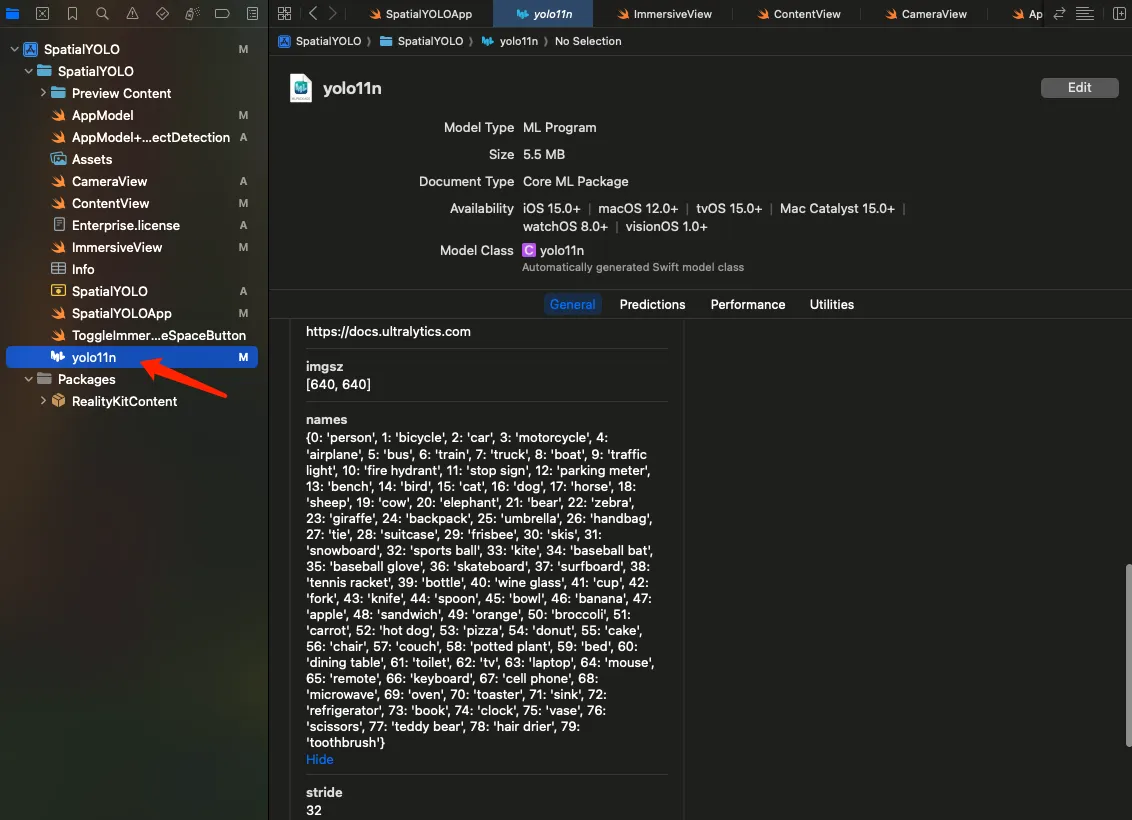
If you need to export YOLO11n again, the project's optional workflow is:
python3 -m venv .venv
source .venv/bin/activate
python -m pip install ultralytics
yolo export model=yolo11n.pt format=coreml nms=true
This optional export was not rerun for this article. Record the actual ultralytics, coremltools and Python versions you use, and investigate compatibility if conversion fails. Add the resulting .mlpackage to the application target without duplicating existing resources. nms=true includes non-maximum suppression in the export; consult the Ultralytics Core ML export documentation for supported options.
4. Configure the Gemini key and include it in the app
Get a Gemini API key with access to the required model from Google AI Studio. From the repository root:
cp SpatialYOLO/Config.plist.example SpatialYOLO/Config.plist
Set GEMINI_API_KEY in Config.plist. This is the relevant entry, not a complete plist:
<key>GEMINI_API_KEY</key>
<string>YOUR_GEMINI_API_KEY</string>
Check target membership or the target's resource settings in Build Phases so that Xcode includes the file and Bundle.main can find it. A file on disk is not necessarily a resource in the built app.
AppModel.loadGeminiAPIKey() reads that key from the app bundle and logs a warning if it cannot find a valid value. You do not need a Qwen key to test Gemini. The repository ignores real configuration and license files, but bundling a long-lived key is a personal development arrangement. Before distributing an app, design server-side credential and access management; do not share your personal key in an application bundle.
5. Check four parts of the 2.5 → 3.1 migration
The Google model page confirms the Live API identifier gemini-3.1-flash-live-preview. An ordinary text-model identifier is not interchangeable with it.
The implementation highlights four migration checks:
- Model name: the service uses
models/gemini-3.1-flash-live-preview. - Text transport:
sendTextMessage()sendsrealtimeInput.text.sendDetectionContext()caches context until it is merged into an explicit text request. - Frame coverage: setup explicitly requests
TURN_INCLUDES_ONLY_ACTIVITY. Review turn coverage before copying examples with different defaults. - Response parsing: iterate through
modelTurn.partsand continue processing transcription fields. Reading one text part must not cause audio in the same event to be skipped.
This abridged setup illustrates the relevant structure. It omits voice selection and the system instruction and is not a replacement for the complete function:
let setup: [String: Any] = [
    "setup": [
        "model": "models/gemini-3.1-flash-live-preview",
        "generationConfig": ["responseModalities": ["AUDIO"]],
        "inputAudioTranscription": [:],
        "outputAudioTranscription": [:],
        "realtimeInputConfig": [
            "turnCoverage": "TURN_INCLUDES_ONLY_ACTIVITY"
        ]
    ]
]
Read the complete GeminiLiveService.swift at the pinned commit and compare it with the Live API capabilities guide. In the project, setupComplete marks the configured session as ready; opening the WebSocket alone is not enough.
6. Complete the first conversation on Vision Pro
Configure your own Team, Bundle Identifier and matching signing setup in Xcode, select the paired physical Vision Pro and run:
- Open AI Live and verify the camera preview.
- Select Gemini and press START.
- Look for
[GeminiLive] Setup 完成,连接就绪in the console, then check microphone input feedback. - Leave Auto mode off initially. Face a clear, stationary object and ask aloud, “Describe the object in front of me in one sentence.” Check for frame sending, audible speech and subtitles.
- Switch to another object and ask again. The response should reflect the new image, helping rule out reliance on the previous conversation alone.
- Stop and restart once, then keep the session running for more than two minutes and observe disconnection and reconnection.
This is a proposed device acceptance procedure. Article preparation verified sources and code; these steps were not rerun on another Vision Pro for this article.
7. Debug latency and understand two current limitations
Perceived delay includes end-of-speech detection, image sampling, transport, response generation, reception and audio playback. Record five timestamps per turn: the last user-speech sample, the last frame submission, receipt of the first response audio chunk, actual playback of that chunk and the end of the answer.
Start with “first actual audio playback minus last user-speech sample” as a measure of perceived waiting. Track network errors, reconnects and initial connection separately. Scheduling a buffer is not proof that the user has heard it. Keep device, network, prompt, answer length and sampling mode consistent; collect Chinese and English samples separately and report sample count, median and P95. This tutorial supplies no unmeasured millisecond claims.
| Symptom | First checks |
|---|---|
| Black camera preview | License expiration, entitlement, signing, usage descriptions and authorization |
Connection without setupComplete |
Key access, model identifier, setup fields and network errors |
| Conversation works but new objects are missed | isVoiceSamplingActive, input threshold and frame logs; ensure the object is visible while asking |
| Subtitles without sound | Incoming inlineData, 24 kHz PCM playback format and audio-engine state |
| Reconnection around two minutes | The client has a 120-second timer that disconnects and requests reconnection |
| Old speech continues after interruption | Whether the interruption handler actually stops and clears queued audio |
The final two items deserve a source check. The 120-second timer is a client behavior in this commit, not a universal Gemini 3.1 service limit. The current sessionResumptionUpdate handler logs the event without persisting and reusing a resumption handle. Automatic reconnection therefore does not establish seamless context recovery.
Interruption handling also has a boundary: sending an explicit text message stops and restarts the audio player, but the interrupted event branch only updates speaking state and transcript formatting. It does not clear the playback queue in the same way. A production voice experience needs that path completed and tested on device. This is a code-review finding, not a claim that a particular fault was heard during this article's preparation.
Frequently asked questions
Can I reproduce the full experience without Main Camera Access?
No. You can separately validate an API connection or audio path, but that does not reproduce an assistant driven by the Vision Pro main-camera view.
Do I need to train YOLO myself?
No. This commit already contains model packages. Check the resources and target configuration first; explore training and export when your recognition requirements change.
Why does the README still say Gemini 2.5?
The README has not caught up with the service code. The pinned commit uses Gemini 3.1 Flash Live. Record the commit, actual model identifier and documentation date when reproducing it later.
Is the whole assistant offline?
No. YOLO detection runs on the device, while Gemini conversation sends sampled images and audio to a cloud service. Use a suitable test environment and material; on-device detection does not make the entire pipeline local.
Is 3.1 guaranteed to be faster?
My video description reports a subjective improvement, without controlled comparison data. Network, language, turn detection and playback queues all affect the result. Measure the change under equivalent conditions.
Build your own spatial assistant from one complete exchange
Start with one object and complete the loop: see it, ask about it and hear the answer. Then verify object changes, interruption and reconnection. Once those work reliably, explore narration, equipment guidance, exhibit interpretation or another concrete use case.
The reusable lesson from SpatialYOLO is to make image freshness, session readiness and actual audio playback independently observable. That gives you a clear path to recheck when changing models or adding a provider.